Find your way around the console
The console at aozumi.dev/console is where you import, deploy, share and run your apps. This page names every place in it, so the rest of the docs can send you straight there.
The sidebar
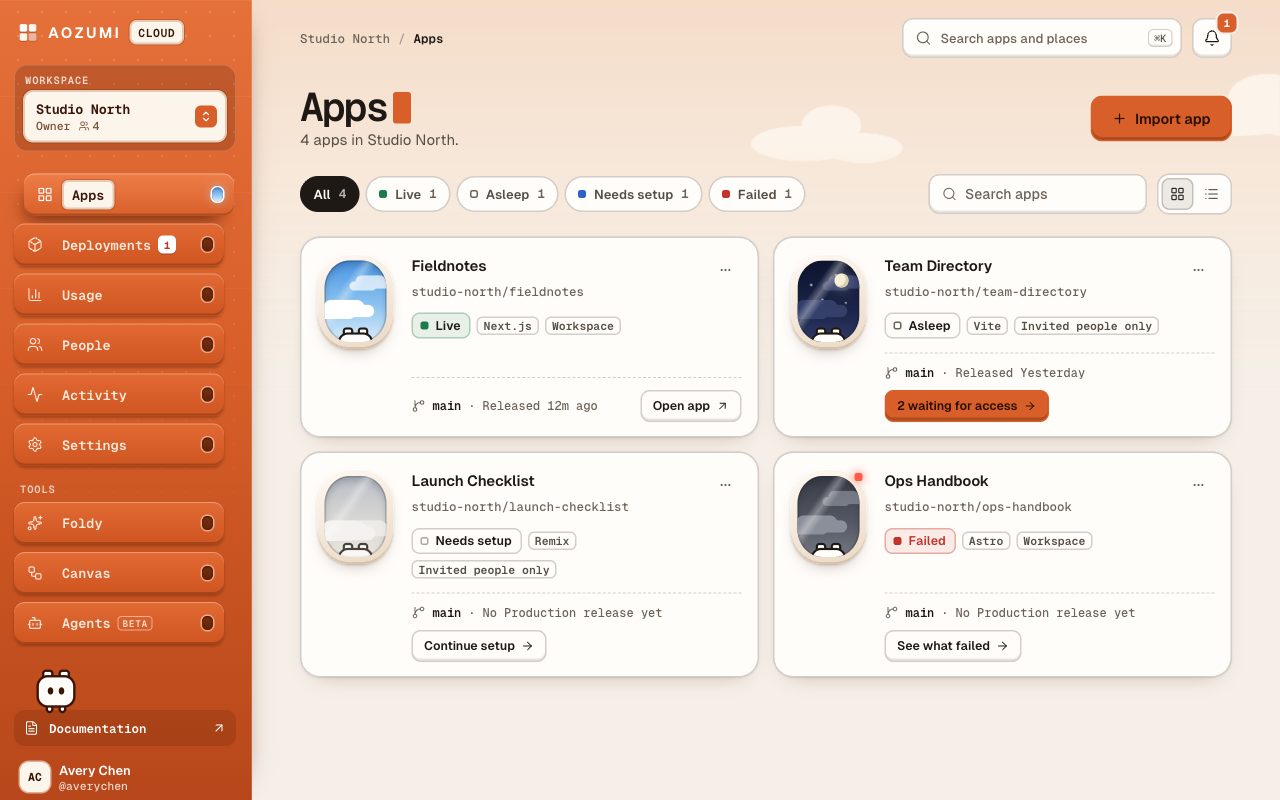
The sidebar is the same on every page. At the top is the workspace picker. It shows the workspace you are in, your role and how many members it has. Open it to switch workspace, or choose New workspace to create one. See workspaces and members.
Below the picker are the places, in this order:
- Apps
- Every app in the workspace, with its status and one next action. Filter by status, search, and switch between grid and list.
- Deployments
- What needs attention, what is deploying, what is asleep and what is live, across all apps. A red count shows failed Production deploys.
- Usage
- Where the workspace stands against its limits, and which apps run the most. Nothing here is billed during the beta.
- People
- Workspace members and their roles, and who else can open each app.
- Activity
- Who changed what, and when. Owners and admins see the full audit log, which they can search and export.
- Settings
- Workspace settings: General, Workspace rules, Alerts and Integrations.
Under Tools are Foldy, Canvas and Agents. At the foot of the sidebar are a Documentation link and your avatar.
When a Production deploy fails, a strip at the top of every page names the app and says whether visitors still get the last release. Select See why to open its deployment.
Search and notifications
The top bar shows where you are, for example Studio North / Apps / Atlas dashboard.
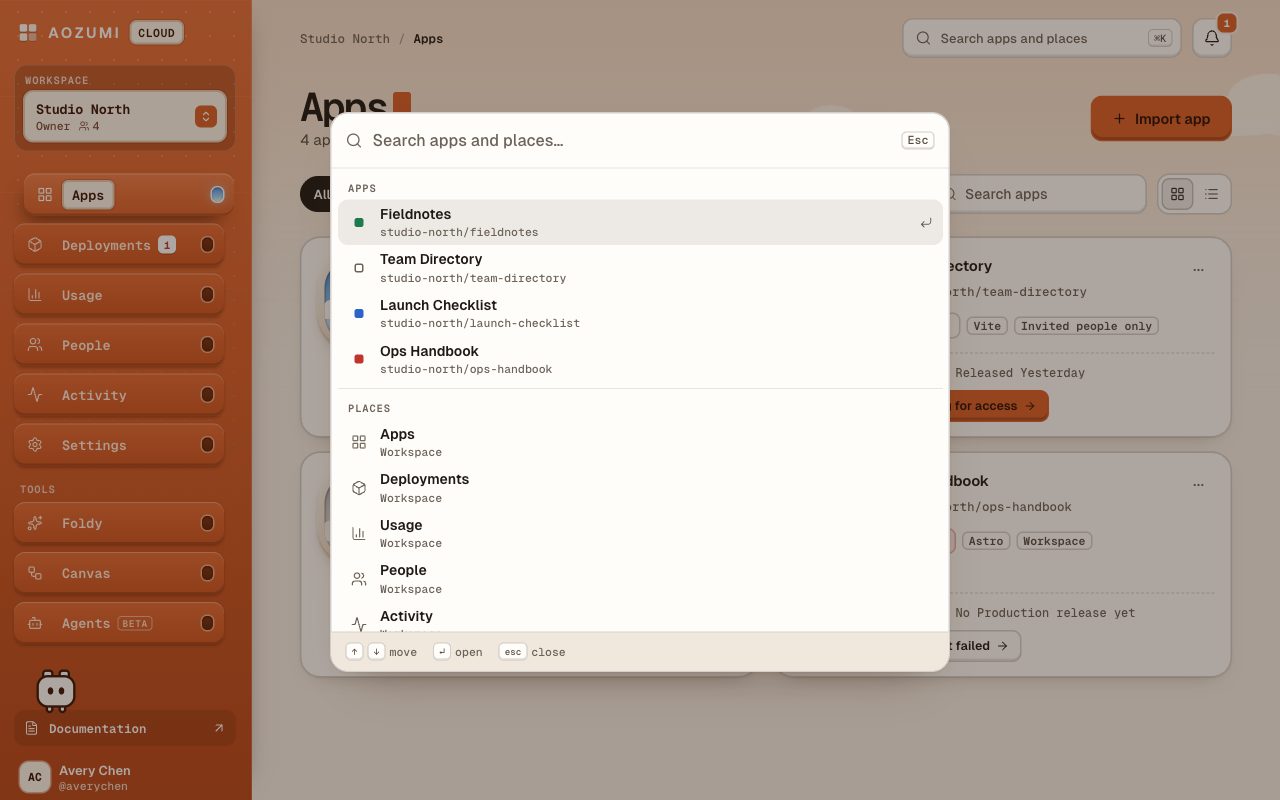
- Search apps and places, or press ⌘K (Ctrl+K on Windows and Linux). Results come in three groups: Apps opens an app's Overview, Places opens a sidebar place or Notifications, and Settings opens a workspace settings section.
- The bell opens Notifications, with a count of unread items. See notifications and alerts.
Your account
Select your avatar at the foot of the sidebar:
- Profile opens your profile: your workspaces and roles, your agent keys for MCP and the REST API (in Deploy from Cursor or Claude), and your active sessions.
- Switch workspace opens the workspace picker.
- Sign out signs out this device.
- Sign out everywhere… opens Profile › Active sessions, where you confirm ending every session, on the console and in apps.
Inside an app
Select an app's name anywhere to open its Overview. The header shows the app's status, its repository and branch, and its address with a copy button. The buttons on the right change with the app's state: Open app and Share when it is live, Fix deploy when the last deploy failed, Resume app when it is paused. See app status.
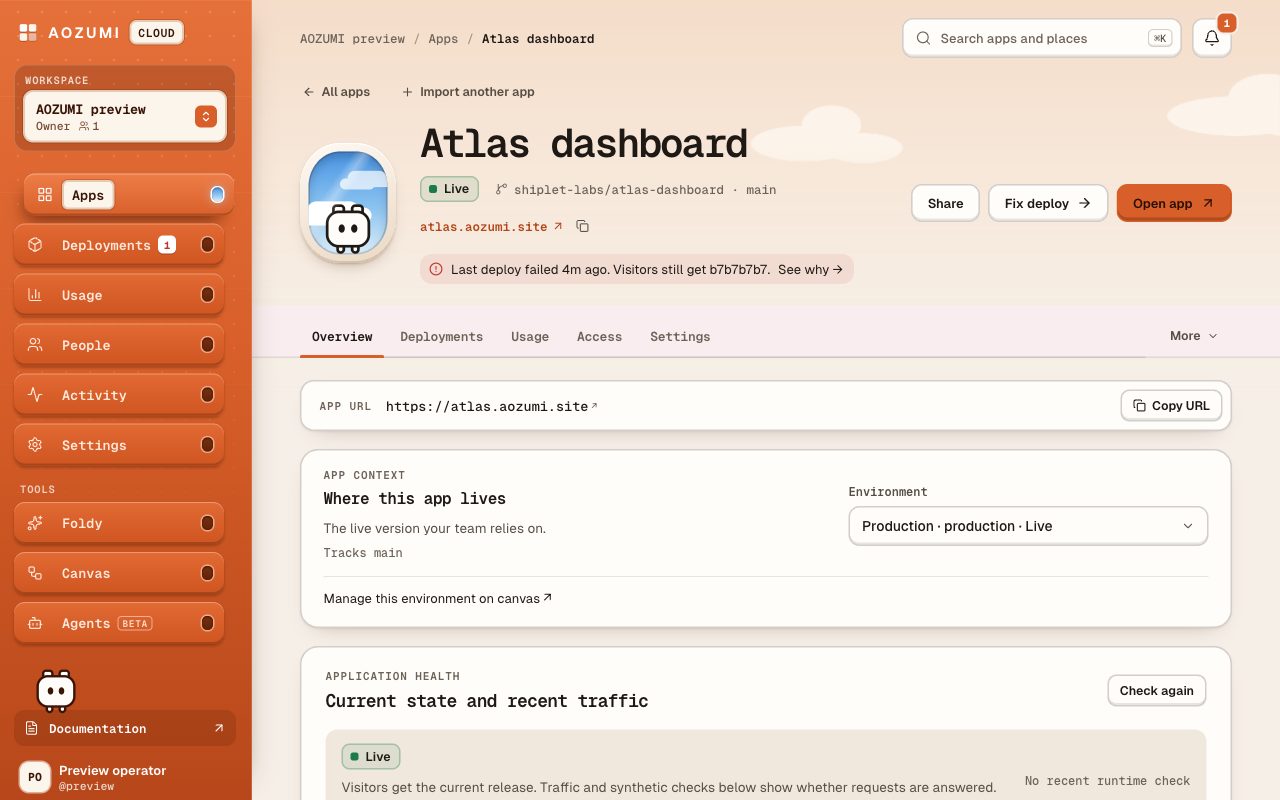
Each app has five tabs:
- Overview
- Before the first deploy, the setup plan and Put app online. After it, the latest deployment, the release brief, size and sleep, access, and application health.
- Deployments
- Start, follow, retry or cancel a deploy, read logs, and restore an earlier release. See releases and restore.
- Usage
- What the app used in the last 30 days.
- Access
- Who can open the app, people with access, invitations, share links and access requests. A badge counts open requests. See link access and sharing.
- Settings
- Everything you configure, in sections (below).
The More menu holds Architecture map and Open in Canvas.
App settings sections
The Settings tab lists its sections on the left. Most sections say when a change takes effect; General says it for each setting.
| Section | What it holds | Read more |
|---|---|---|
| General | Deploy on push, size and sleep, previews, deploy hooks | Size and sleep, Previews |
| Domains | The default AOZUMI link and custom domains | Custom domains |
| Production variables | Encrypted values for Production | Environment variables |
| Databases | Every database the app uses, with backups and restore | Databases |
| Firewall | Rules and a request limit per visitor | Firewall |
| Feature flags | Flags your app reads without a deploy | Feature flags |
| Log drains | Send logs to your own endpoint | Log drains |
| Danger zone | Pause, resume or delete the app | Below |
Danger zone
Owners and admins can pause, resume or delete an app. Pause app takes it offline until you select Resume app, which starts a new deployment. Delete app lists what will be deleted and what will be kept, and asks you to type the app's name.
Links you can share
Every place and section has its own address, so you can send a teammate straight to it:
- A place:
/console?view=deploy. The views areapps,deploy,costs(Usage),people,activity,settings,notifications,foldyandagents. Canvas opens at/console/canvas. - A workspace settings section:
/console?view=settings§ion=alerts. The sections aregeneral,rules,alertsandintegrations. - An app tab:
/console/apps/my-app?tab=deployments. The tabs areoverview,deployments,cost(Usage),accessandsettings. - An app settings section:
/console/apps/my-app?tab=settings§ion=domains. The sections aregeneral,domains,environment,databases,firewall,flags,logsanddanger.
If someone opens a link to an app that is in another workspace, the console says so and offers Switch workspace.
Questions
- Where are notifications in the AOZUMI console?
- Select the bell in the top bar, or press ⌘K (Ctrl+K on Windows and Linux) and choose Notifications. They have no sidebar item.
- How do I switch between workspaces?
- Open the workspace picker at the top of the sidebar and choose a workspace, or select your avatar at the foot of the sidebar and choose Switch workspace. Apps, people and usage stay separate in each workspace.
- Where did an app's variables, firewall and databases go?
- They are sections of the app's Settings tab: Production variables, Firewall and Databases. Older links that opened them as tabs still work and open the matching section.
- Where do I create an agent key?
- On your Profile (avatar menu › Profile), in the section Deploy from Cursor or Claude. Select Create agent key.
Checked against the product on .