Workspaces and members
A workspace holds your apps, the people who work on them, and the rules they share. Apps, people and usage stay separate in each workspace.
Create or switch a workspace
- Open the workspace pickerIt is at the top of the sidebar. It lists every workspace you belong to, with your role in each.
- Choose a workspace, or New workspaceFor a new one, enter a name and select Create. You become its owner.
A new workspace opens with three steps: connect GitHub, invite your team, and import your first app. You can also switch from the avatar menu (Switch workspace) or from Profile › Workspaces.
Roles
Every member has one role. A workspace has exactly one owner.
| Role | What it can do |
|---|---|
| Owner | Everything, including transfer and delete |
| Admin | Manages apps, members and settings |
| Builder | Imports and deploys apps |
| Viewer | Sees apps and deployments |
You can assign Admin, Builder or Viewer. The owner role moves only by transfer. The workspace rule Protect Production can limit Production changes to owners and admins; builders then keep previews.
Invite a member
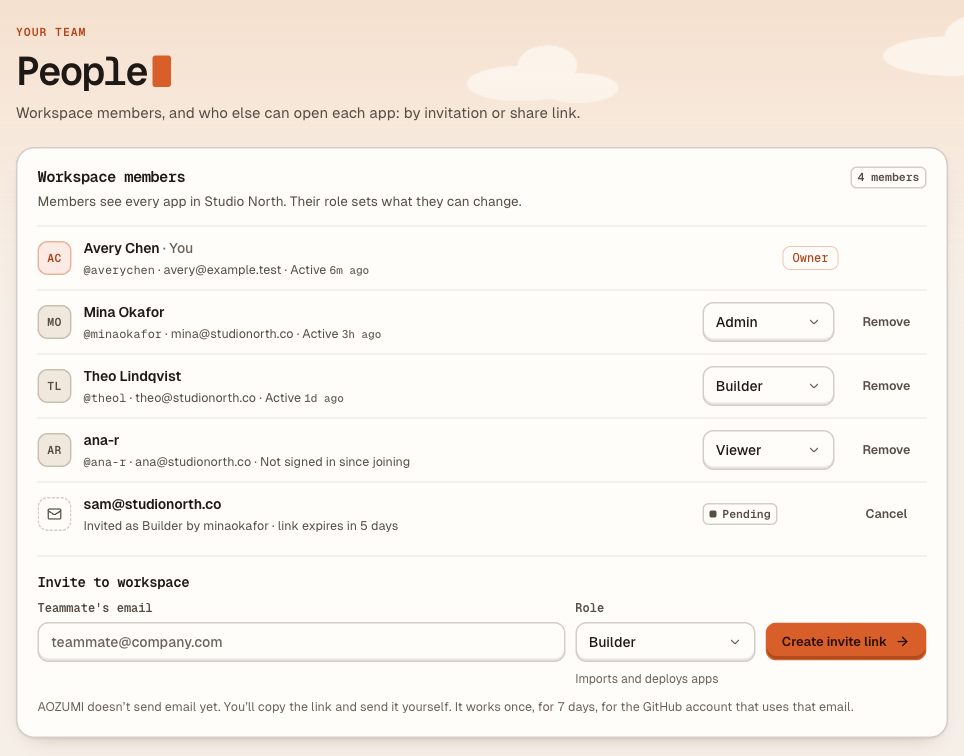
- Open PeopleUnder Workspace members, find Invite to workspace. Only the owner and admins see it.
- Enter the email and a roleType the teammate's email and choose a role. Builder is preselected.
- Select Create invite linkCopy the link and send it yourself. AOZUMI does not send email yet.
The link works once, for 7 days. The person signs in with GitHub, and the invited email must be the email AOZUMI has for that GitHub account: its public profile email, or otherwise its primary verified email. Joining makes the workspace their active one.
Pending invitations show in the member list as Invited as Builder · link expires in 5 days, with Cancel. Cancelling stops the link working.
Change a role or remove someone
On People, owners and admins see a role select and Remove on each member. Remove asks you to click twice, or to hold the button.
- Nobody can change their own role. Ask the owner, or leave the workspace.
- Nobody removes themselves. Use Leave workspace.
- The owner cannot be removed, and their role changes only by transferring ownership.
Rows show each member's GitHub login and when they were last active. Owners and admins also see members' emails.
Rename, transfer, leave or delete
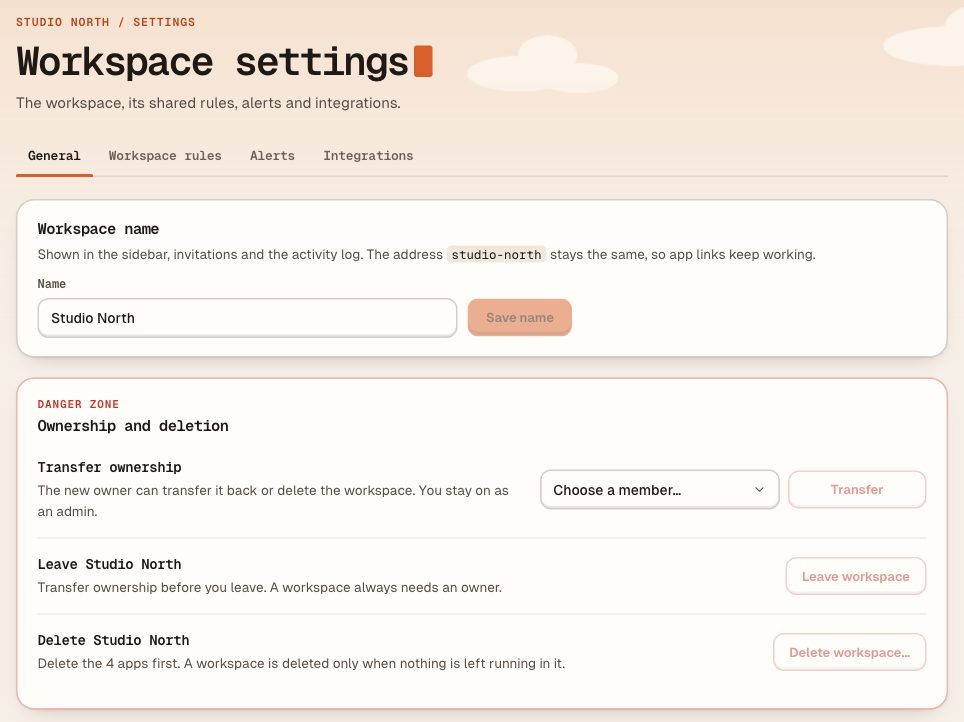
Open Settings › General.
- Rename
- Owners and admins edit Workspace name (2 to 60 characters) and select Save name. The workspace's address does not change.
- Transfer ownership
- Only the owner can do this. Choose the new owner from your members; you stay on as an admin. To hand the workspace to someone new, invite them under People first.
- Leave
- You lose access to its apps right away, and someone has to invite you again to come back. The owner transfers ownership before leaving, because a workspace always needs an owner.
- Delete
- Only the owner can delete a workspace, and only when no apps, databases or agents are left in it. Select Delete workspace…, type the workspace name, then select Delete followed by the name. This removes the workspace, its settings, invitations and activity log, and cannot be undone.
Workspace rules
Settings › Workspace rules sets a safe default for every app. Owners and admins can change them. Saving shows Review N changes first, with the effect of each change, then Save workspace rules.
- 01 Run apps near your team
- The default region for new app services: Singapore, Oregon, Ohio or Frankfurt. Running apps and existing databases stay where they are.
- 02 Protect Production
- Who can deploy to Production and change its settings: Owners, admins, and builders, or Owners and admins only. Previews stay open to builders either way.
- 03 Choose how apps leave the workspace
- Named invites and protected links, or Named invites only. With named invites only, no new share links can be created. See share links.
- 04 End guest access automatically
- Guests who accept an app invitation or access request get an end date: after 30 days, after 90 days, or never (Keep access until removed). It applies to guests who join from now on.
- 05 Control where Production can connect
- Show destinations, do not block lists the hosts each app calls. Approved destinations only refuses a Production deploy that calls a host not in Approved domains; a domain also covers its subdomains. Running releases keep running.
Before you save a stricter outbound rule, the review says how many apps would be refused at their next Production deploy. When a deploy is refused for an unapproved host, owners and admins can approve the host and redeploy from the deploy itself.
Questions
- Does AOZUMI email workspace invitations?
- Not yet. Create invite link gives you a link to copy and send yourself. It works once, for 7 days, for the GitHub account that uses the invited email (its public profile email, or otherwise its primary verified email).
- What is the difference between a workspace member and someone with app access?
- Members see every app in the workspace, and their role sets what they can change. People invited to one app, or given a share link, open only that app. They never see the workspace, its other apps or its settings.
- Why can't I delete my workspace?
- Only the owner can delete a workspace, and only when no apps, databases or agents are left in it. The console names what is still there. Delete those first.
- Can an API key add or remove members?
- No. Members and workspace settings are managed in the console only. API keys never manage them, whatever their access level.
Checked against the product on .