Notifications and alerts
AOZUMI watches Production for you. Problems show in the console as they happen, and alert channels send them to Slack or to your own endpoint.
In the console
Three places show a Production problem:
- The failure strip. When a Production deploy fails, a strip at the top of every page names the app, when it failed, and whether visitors still get the last release. Select See why. Hiding the strip lasts until the next failure.
- The Deployments badge. The Deployments item in the sidebar shows how many apps have a failed Production deploy.
- Notifications. Select the bell in the top bar, or press ⌘K and choose Notifications.
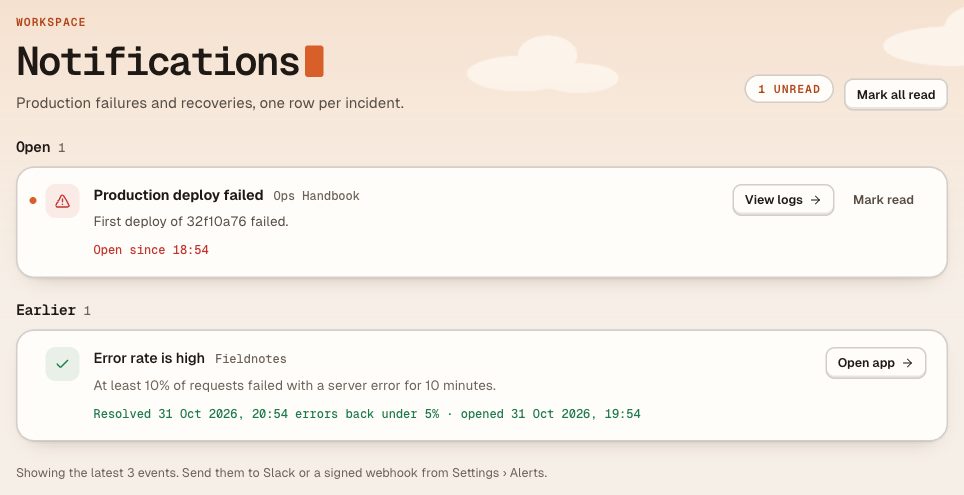
Notifications shows one row per incident: open incidents under Open, the rest under Earlier (All clear when nothing is open). An open row reads Open since …; a resolved one says when and how it was resolved. Each row links to what you need next: View logs, Open deployments, Open app or Fix log drain. Use Mark read on a row or Mark all read for everything. Each member marks items read for themselves.
What raises an alert
Each problem alerts once, not on every check, and recovers once.
- Release failed
- A Production release or operation failed. If an earlier release was live, it keeps serving. Recovered when a later release is live.
- Health checks failing
- Three checks in a row, about 10 to 15 minutes, got no healthy answer from the live release. Recovered on the next healthy check. Needs health checks turned on for the app; see health checks.
- Error rate high
- At least 10% of Production requests failed with a server error in 2 5-minute windows in a row, with at least 20 requests and 5 failures in each. Recovered after 2 windows under 5%.
- Log drain turned off
- A one-off notice that a log drain kept failing and was turned off.
Send alerts to Slack or a webhook
- Open Settings › AlertsIn the sidebar, open Settings, then the Alerts tab. Owners and admins can change it.
- Choose a DestinationSlack incoming webhook (a
https://hooks.slack.com/services/…URL), or Signed HTTPS webhook (any public HTTPS endpoint on port 443). Give it a name. - Pick what to sendUnder Send these alerts, tick the alerts and recoveries this channel receives.
- Select Add channelFor a signed webhook, copy the signing secret now. It is not shown again.
Use Send test to confirm a channel works, and Pause or Resume to stop and start it. Remove… asks first; the channel stops receiving alerts at once, and the console inbox keeps them.
A workspace can have up to 10 channels. URLs are encrypted and never shown again after you add them. AOZUMI does not follow redirects, retries failed deliveries with backoff, and shows each channel's last delivery. Private addresses, IP literals and AOZUMI's own domains are refused.
Verify a signed webhook
Each request is a JSON body with these headers: x-aozumi-event, x-aozumi-delivery, x-aozumi-timestamp and x-aozumi-signature. The signature is sha256= followed by the hex HMAC-SHA256 of timestamp.body, using the channel's signing secret. Reject requests with old timestamps.
import { createHmac, timingSafeEqual } from "node:crypto";

// body: the raw request body as a string, before JSON parsing.
export function verifyAlert(headers, body, secret) {
  const timestamp = headers["x-aozumi-timestamp"];
  if (Math.abs(Date.now() / 1000 - Number(timestamp)) > 300) return false;
  const expected = "sha256=" + createHmac("sha256", secret).update(`${timestamp}.${body}`).digest("hex");
  const a = Buffer.from(expected);
  const b = Buffer.from(headers["x-aozumi-signature"] ?? "");
  return a.length === b.length && timingSafeEqual(a, b);
}
Questions
- Can AOZUMI alert me in Slack?
- Yes. Owners and admins add a Slack incoming webhook under Settings › Alerts and choose which alerts it receives.
- Why is there one row for several alerts?
- Notifications groups each problem and its recovery into one incident, so a failure and the deploy that fixed it read as one row.
- Do previews trigger alerts?
- No. Alerts are about Production. Traffic to previews and other environments never counts toward the error rate.
Checked against the product on .